If your company uses Basementgrid to manage internal recurring maintenance—from scheduled servicing to customer PDF reporting—this guide walks you through the end-to-end workflow from admin dispatch to automated next-month generation.
Workflow Overview
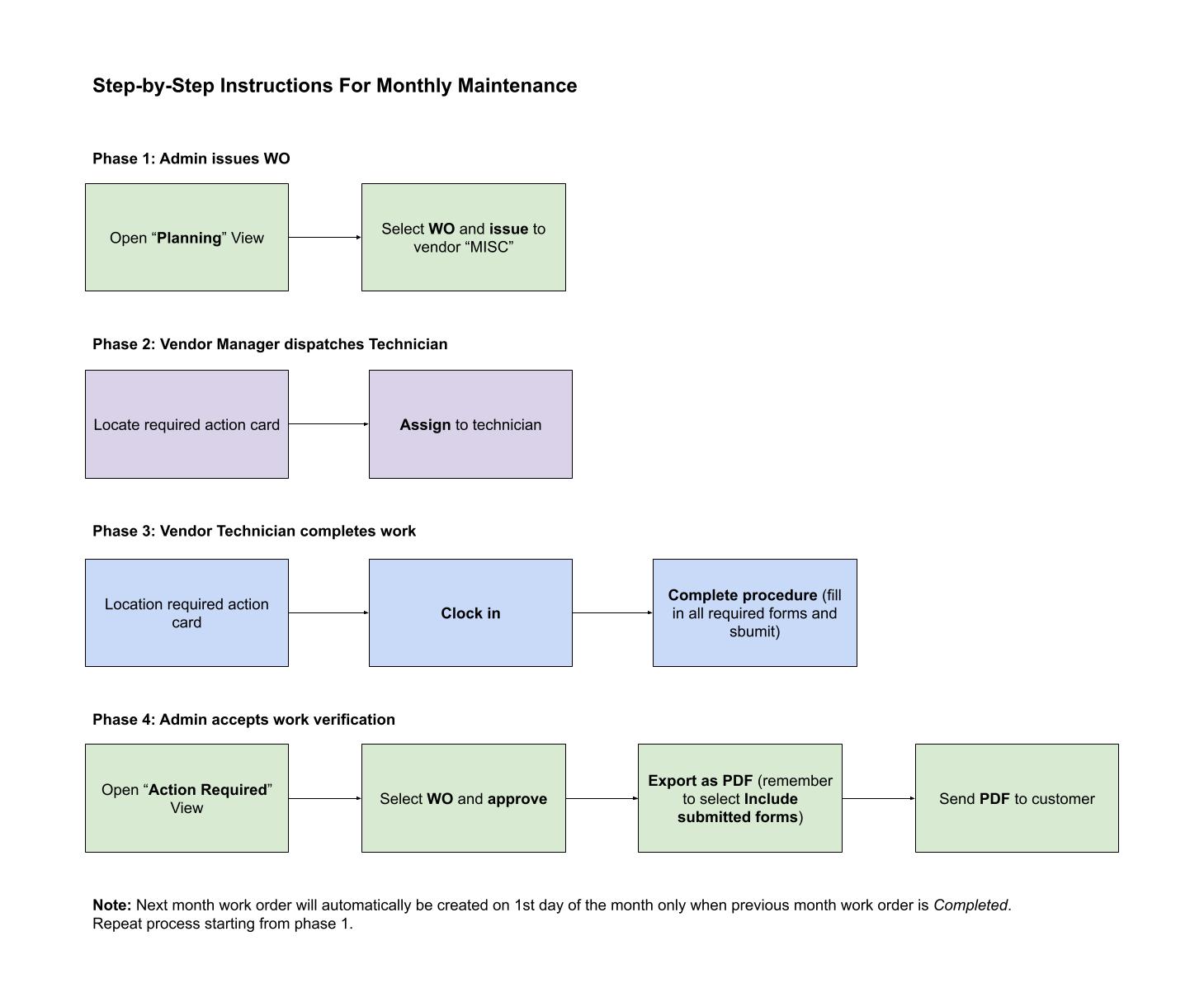
1. Set Up Your Company Workspace, Locations & Team
Before issuing your first job, configure your primary workspace, register customer site details, and set up your operational team flow:
-
Workspace & Location Setup: Navigate to Workspace Settings to set up your company profile (acting as the Workspace Admin). Under Locations, add your customer's site details and register the specific Assets bound to that location.
- Customize Forms & Checklists: Go to Forms to build or customize inspection forms, step-by-step checklists for your technicians, and custom report templates if your client requires dedicated reporting formats.
-
Invite Your Company as Vendor: Create a Work Order draft and open it. From the Assignee / Vendor field, invite your company by entering your Vendor Manager's email. This triggers the vendor organization onboarding invitation.
-
Claim Profile & Onboard Field Team: The Vendor Manager opens the email, claims the vendor organization profile, and invites field staff as Technicians. Technicians then download and log into the Basementgrid mobile app.
2. Issue & Configure the Initial Work Order (Admin)
Set up the initial recurring Work Order structure. You only need to perform these configuration steps once, as all subsequent monthly Work Orders will auto-generate with these settings pre-saved.
-
Create Initial Draft WO: Go to Work Orders > Create New WO.
-
Select Preventive as the Work Type.
-
Enter a clear Work Order Title (e.g., Monthly Maintenance - [Site Name]).
-
Select the customer Location and choose specific Assets (optional).
-
Set the Due Date and set the repeat rule to Repeat every month, End of the month.
-
Click Save as Draft.
-
-
Edit Draft (Attach Form & Set Requester): Open the newly saved Draft Work Order.
-
Attach Custom Form: Click the More icon (...) button, select Edit Procedure, and select your customized form/checklist.
-
Change "Reported By" (Optional): By default, the Reported By field is set to the Work Order creator. If you want your client to have direct portal access to completed reports, change this field to your customer's contact (invited as a Requester).
Important: The Reported By field can only be edited while the Work Order is in Draft status. Once issued, this field is permanently locked to maintain data integrity and audit trail compliance.
-
-
Issue to Vendor: Review the details, tap Issue Work Order, select your own organization as the vendor, and confirm to issue it directly to your team's queue.
3. Assign & Execute (Manager & Technician)
Once the Work Order reaches your vendor dashboard:
-
Manager Assignment: The Vendor Manager receives the WO and assigns it to the designated field technician.
-
Clock-In: Upon arrival on-site, the technician opens the Basementgrid mobile app, opens the job, and hits Clock In (capturing time and location verification).
-
Completion: The technician executes the servicing checklist for the specific assets, attaches photos, logs notes, and taps Complete WO.
GPS Verification Tip: Basementgrid automatically prompts technicians for GPS-verified photo capture when an address is attached to the customer's location. If your team does not require location-verified photo evidence for servicing, simply leave the address field blank when setting up the location in Step 1.
4. Review, Approve & Deliver (Admin)
Once field execution is complete:
-
Review & Approve: The Workspace Admin receives a notification to review the completed Work Order, verify time logs, checklist entries, and photos, then clicks Approve.
-
Deliver to Client: Choose how to share the report with your customer:
-
Option A (Export PDF): Click Export PDF to generate a clean maintenance report and email it directly to your client.
-
Option B (Direct Access via Requester Link): To skip manually sending reports every month, invite your customer as a Requester and set them as the Reported By contact while editing the draft (Step 2). Once the WO is completed, send them the direct Work Order link, allowing them to directly get the report/submitted form via Export PDF themselves whenever they need it.
-
5. Automatic Recurring Generation
As soon as the current month's Work Order is marked Approved / Completed, Basementgrid automatically generates the draft Work Order for the following month—pre-populated with your location, assets, recurrence rules, and attached procedure forms—keeping your maintenance schedule running seamlessly without manual setup.
