Following these steps ensures your work is logged correctly and that you are verified for the site visit.
1. Locate the Action Card
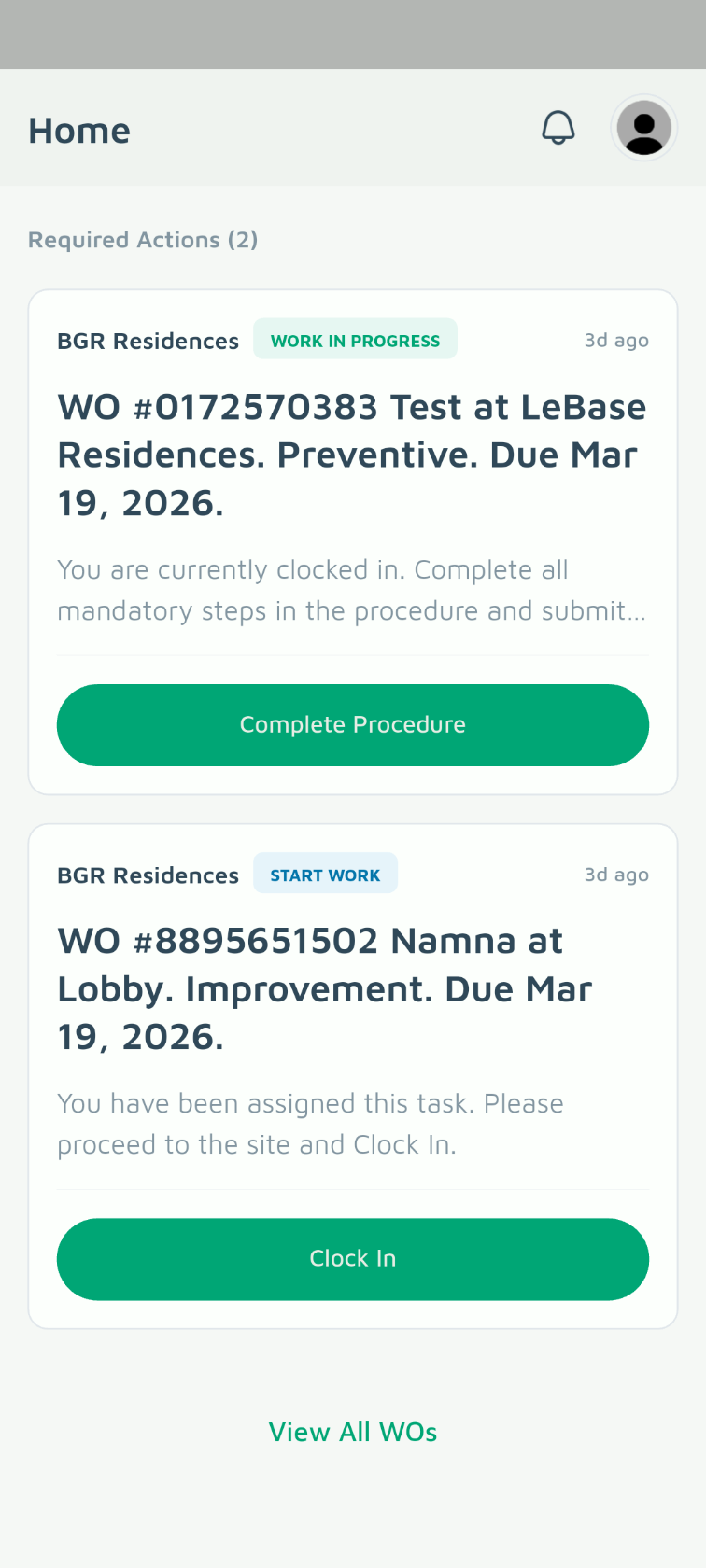
Open the Basementgrid app and scroll through your Home Page to find the specific Action Card for the assigned task.
2. Clock In
Tap the Clock In button.
3. Start the Procedure
Tap Complete Procedure to open the task details and required documentation.
4. Fill Out Required Fields
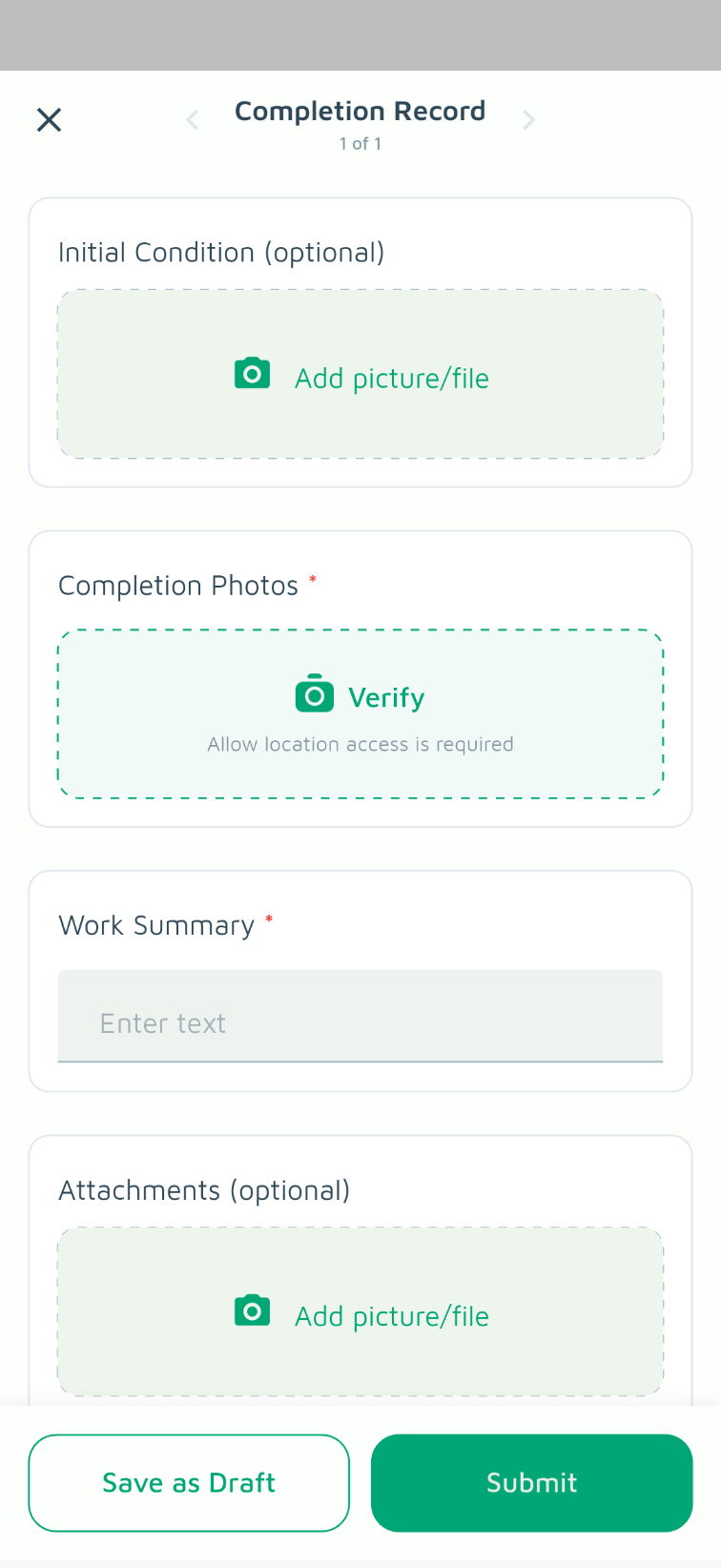
Complete all mandatory forms, checklists, or data fields. If the procedure requires a Photo/Video Verification, ensure the media is clear and captured within the app.
5. Submit Your Work
Review your entries and tap Submit. Once submitted, the status will update, and your time on-site will be recorded.
6. Complete Assigned Custom Forms (Optional)
Complete Assigned Custom Forms (Optional)
If the Work Order includes customized forms or inspection checklists:
- Auto-Advance Navigation: When you tap Submit & Next, Basementgrid automatically opens the next form in sequence for you to fill in. You do not need to submit all forms at once—progress is saved incrementally as you go.
-
Custom Order Selection: If you prefer to fill out a different form first, tap the left or right arrows next to the form title to cycle through and select your preferred form.
