Welcome to Basementgrid! As a Vendor Manager, you are the bridge between estate requirements and onsite execution. Our onboarding process is designed to be "Uncle-proof"—simple, direct, and requiring zero complex configurations.
To maintain a secure and verified environment, Vendor Manager roles are assigned based on authorized email invitations from the estates you service.
How to Get Started
At this time, you cannot register as a Vendor Manager using a random email address. Your access is tied specifically to the email address invited by your client (the Estate or Property Manager).
1. Confirm Your Invitation
Ensure the Estate Manager or MCST Council has sent an invitation to your professional email address. You do not need to wait for a specific link or a "magic" button; the authorization is linked directly to your email identity.
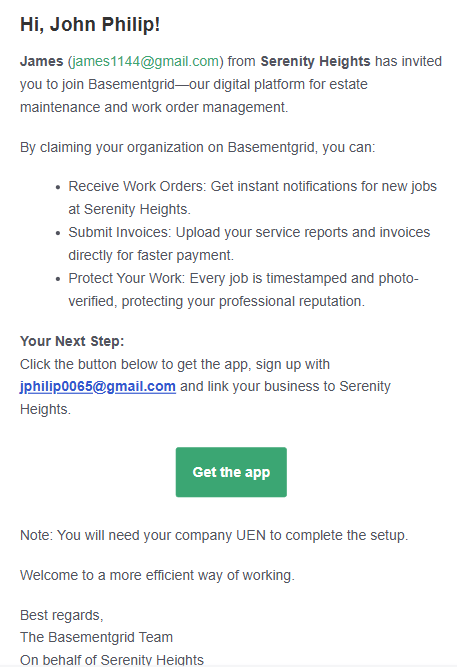
2. Download and Sign Up
-
Download: Get the Basementgrid app from the App Store or Google Play Store.
-
Sign Up: Create a new account using the exact same email address where you received the invitation.
-
Automatic Recognition: Once you verify your email and log in, the system automatically recognizes you as a Vendor Manager. You will immediately see the estate that invited you and can begin managing work orders right away.
3. Complete Your Onboarding
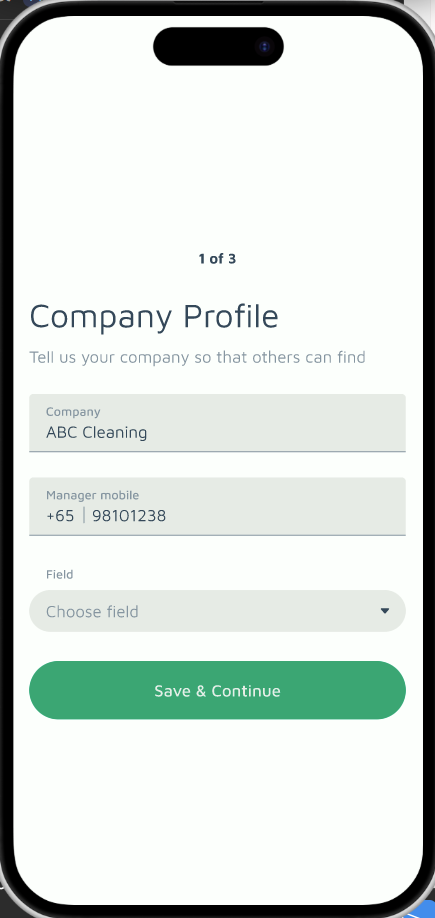
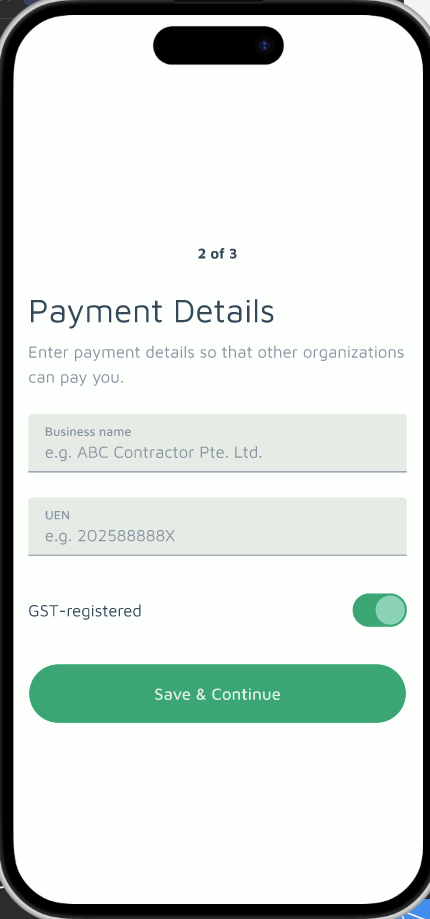
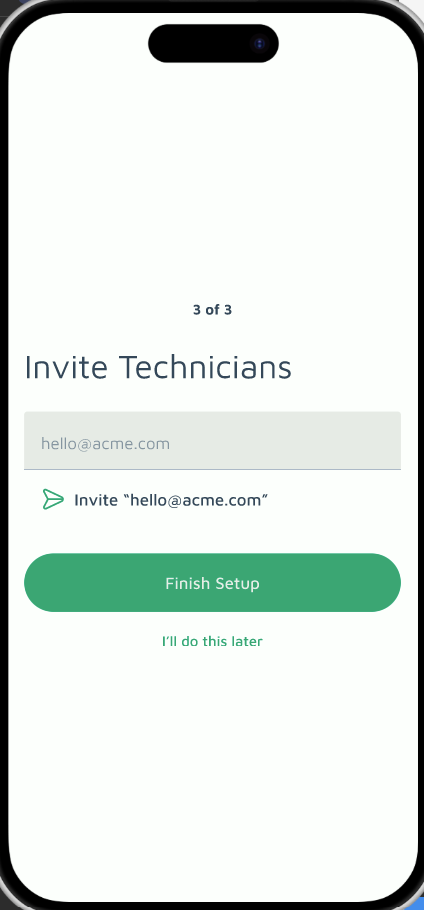
Once you are logged in, follow these three essential steps to get your operations running:
-
Complete Company Profile: Enter your company name and contact details to establish your digital workspace.
-
Complete Payment Details: Set up your payment information (such as Business Name and UEN) to ensure seamless processing and tracking of work orders.
-
Invite Technicians: Add the onsite workers who will be performing the tasks. This allows them to access the app for "Clock-ins" and photo submissions.
- What Happens Next: Your First Required Action
After setup, go to the Home page. Look for the Required Action card. This is where Basementgrid shows you what needs your attention, so you don't have to hunt through menus.
Your first item will usually be one of these two:
- Submit Quotation: The estate has asked you to quote for a job. Tap the item, review the work scope, then enter your price and submit. The estate's approvers will be notified once you do. How to submit a quotation →
- Assign Technician: A work order has been given to you and needs someone onsite. Tap the item, pick one of your invited technicians, and assign. They'll see the job in their app straight away. How to assign a technician →
Once you complete an action, it clears from the card and the next one shows up. If the card is empty, nothing is waiting on you.
Need help with anything else as a vendor? You'll find all our vendor guides at help.basementgrid.com/en/for-vendors.
To maintain a secure and trusted ecosystem on Basementgrid, all vendor profiles must undergo mandatory corporate verification.
When onboarding a new vendor or updating your profile, the Registered Business Name and Unique Entity Number (UEN) must match ACRA records exactly.
Why this matters:
Automated compliance checks run these details against official registries. An mismatched UEN or business name will flag the account as unverified, which freezes automated payouts (via PayNow/DBS RAPID) and restricts the vendor from accepting new work orders.
-
Check the spelling: Ensure suffixes like "Pte Ltd," "LLP," or "Ltd" match your official ACRA business profile.
-
No abbreviations: Do not shorten names (e.g., use "Management" instead of "Mgmt" if that is how it is officially registered).
-
Verify the UEN format: Ensure there are no accidental spaces or transposed letters/numbers in the UEN string.
Why this process?
By linking the Vendor Manager role to a specific invited email, we maintain an Immutable Audit Trail. This ensures that every GPS-verified photo, timestamped "Clock-in," and completed work order is legally and operationally tied to the correct authorized service provider.
Frequently Asked Questions
I signed up but don't see my Vendor Manager tools. Why?
Check that the email address you used to sign up matches the one invited by the Estate. If there is a typo or you used a personal email instead of your work email, the system will not be able to automatically assign your role.
What if I service multiple estates?
If multiple estates invite you using the same email address, they will all appear in your dashboard automatically. You only need to sign up once to manage your entire portfolio.
