Getting Started: Step-by-Step
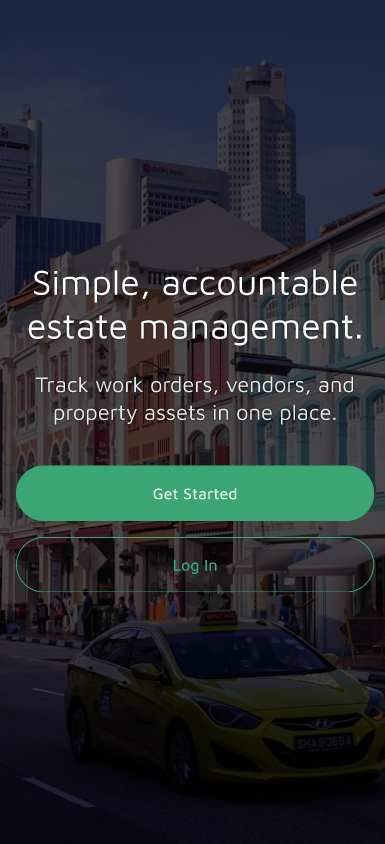
1. Download & Tap "Get Started"
Open the Basementgrid app on your device and tap Get Started on the welcome screen.
2. Create Your Account
Follow the on-screen prompts to register your account using your preferred email or login method.
3. Complete Your Workspace Onboarding
Before submitting your MA request, complete the short workspace onboarding flow. Enter the basic details about your property (such as locations, estate structure, or key maintenance areas).
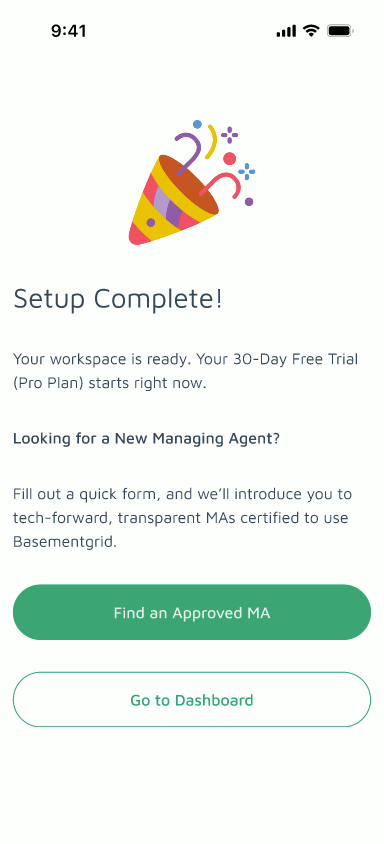
4. Submit Your Request for a New MA
Once your workspace setup is complete, tap the "Find an Approved MA" button. Simply enter your contact number (kept strictly confidential), and we will match you with the most appropriate MA, who will reach out to you directly.
Why do we require workspace onboarding first?
Setting up your workspace upfront allows us to gather clear details about your estate's size, layout, and specific operational needs. With this context, we can match and recommend the most qualified, context-aware Managing Agent (MA) tailored specifically to your property.
💡 Already an Existing User?
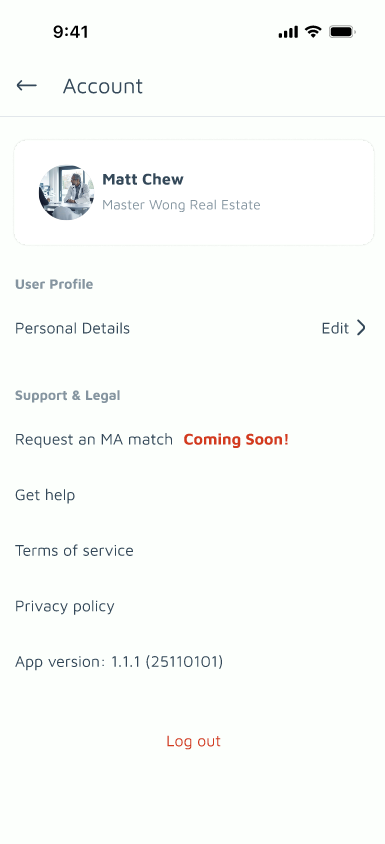
If you have already signed up and are actively using Basementgrid, you can request an MA match directly from your account:
Go to your Profile.
Tap "Request an MA match" (Coming Soon).
In the meantime, if you need an MA recommendation right away, simply head to Get Help in the app and reach out to our support team — we will get back to you as soon as possible!
