When an external Vendor Organization receives an Issued work order from a Building Manager, the Vendor Manager must dispatch it to a specific technician on their team to get the job moving.
Step-by-Step: Dispatching to a Technician
Step 1: Find the Action Card
Quick locate.
Open your vendor dashboard and scroll down to the Required Action card for the newly received job.
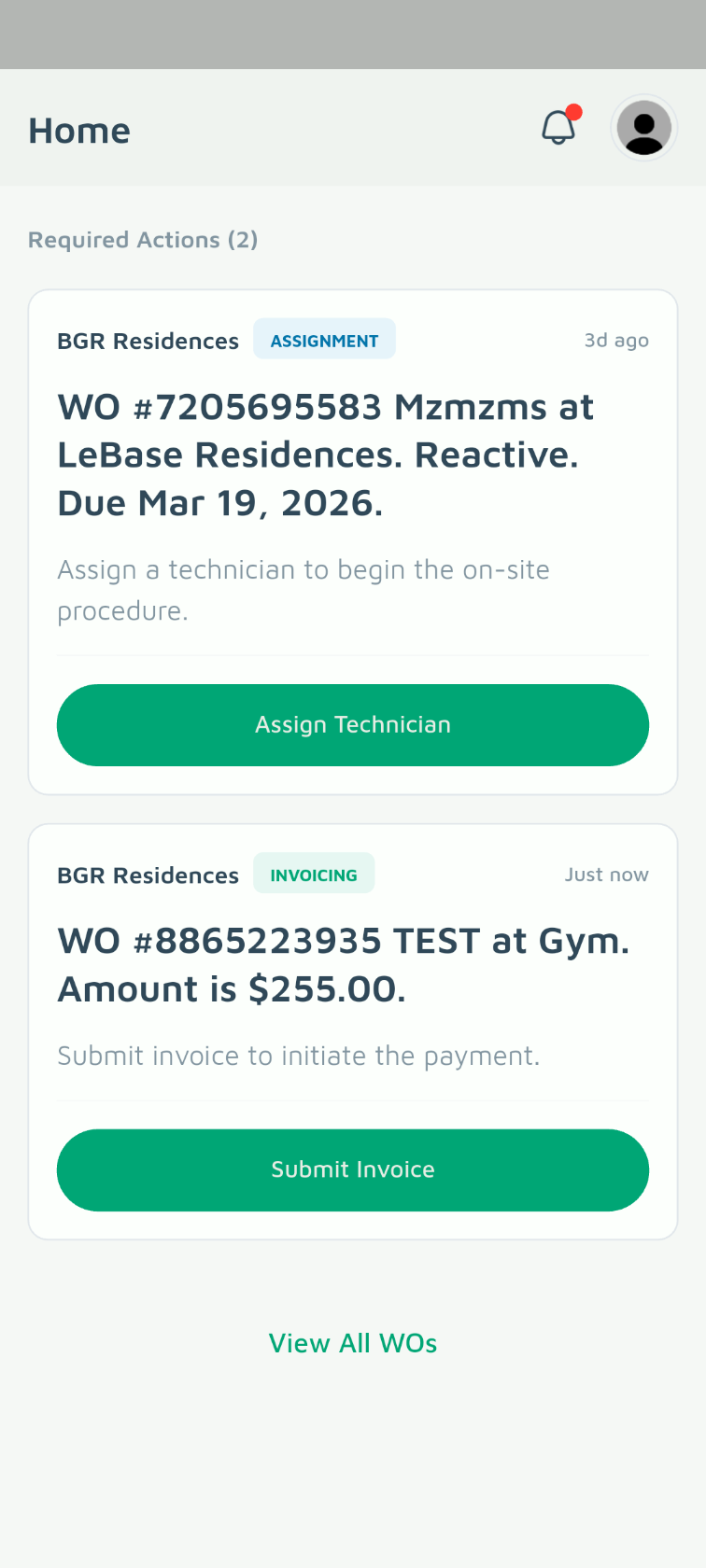
Step 2: Tap Assign Technician
Open dispatch.
Tap the Assign Technician button on the card to open your team registry.
Step 3: Choose from Your Team
Select name.
Search or scroll through your active team members and select the technician responsible for the repair.
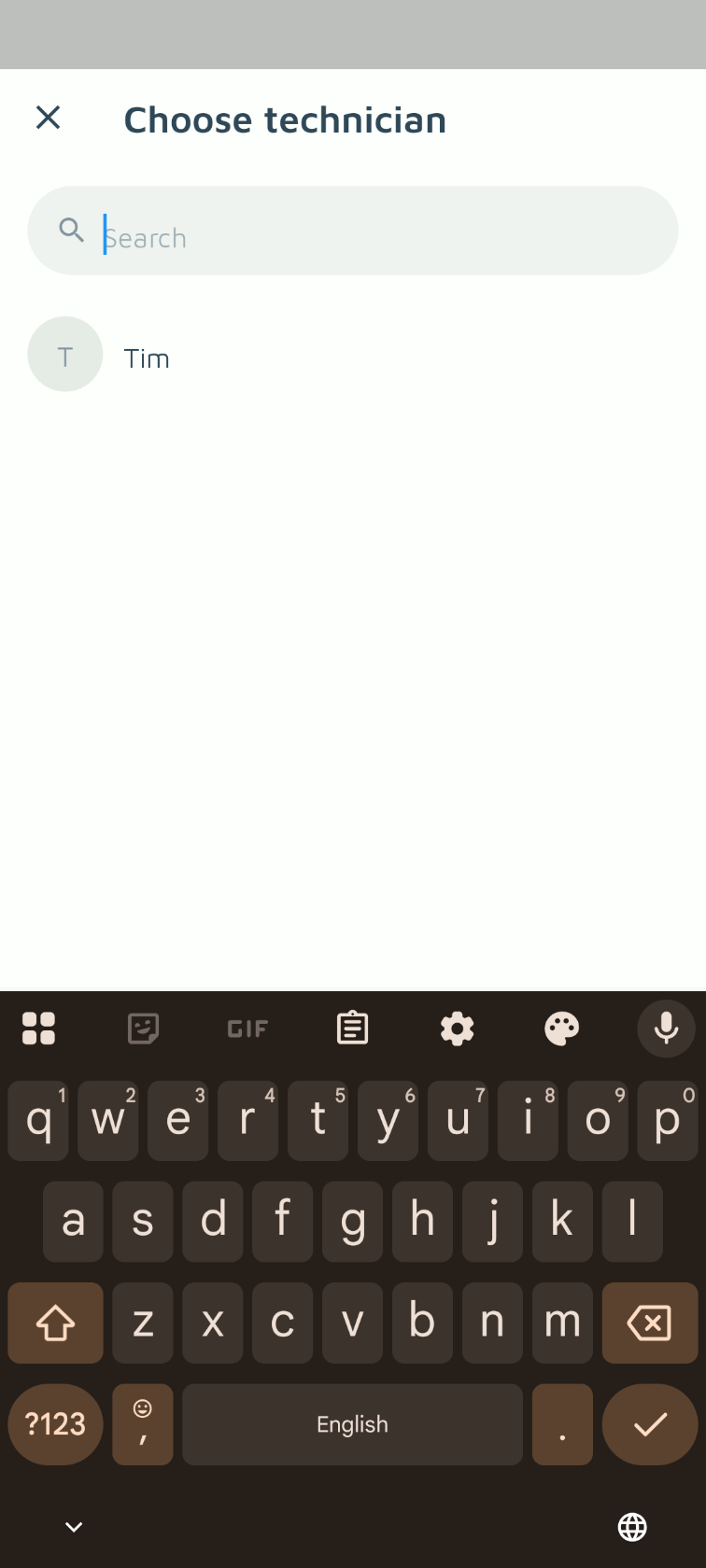
Step 4. Invite a New Technician (If Missing)
Onboard on the fly.
If your technician isn't listed yet, use the Invite and Assign Technician option. Enter their email to send a quick join link. The work order will hold for them and automatically attach to their account once they complete their fast mobile sign-up.
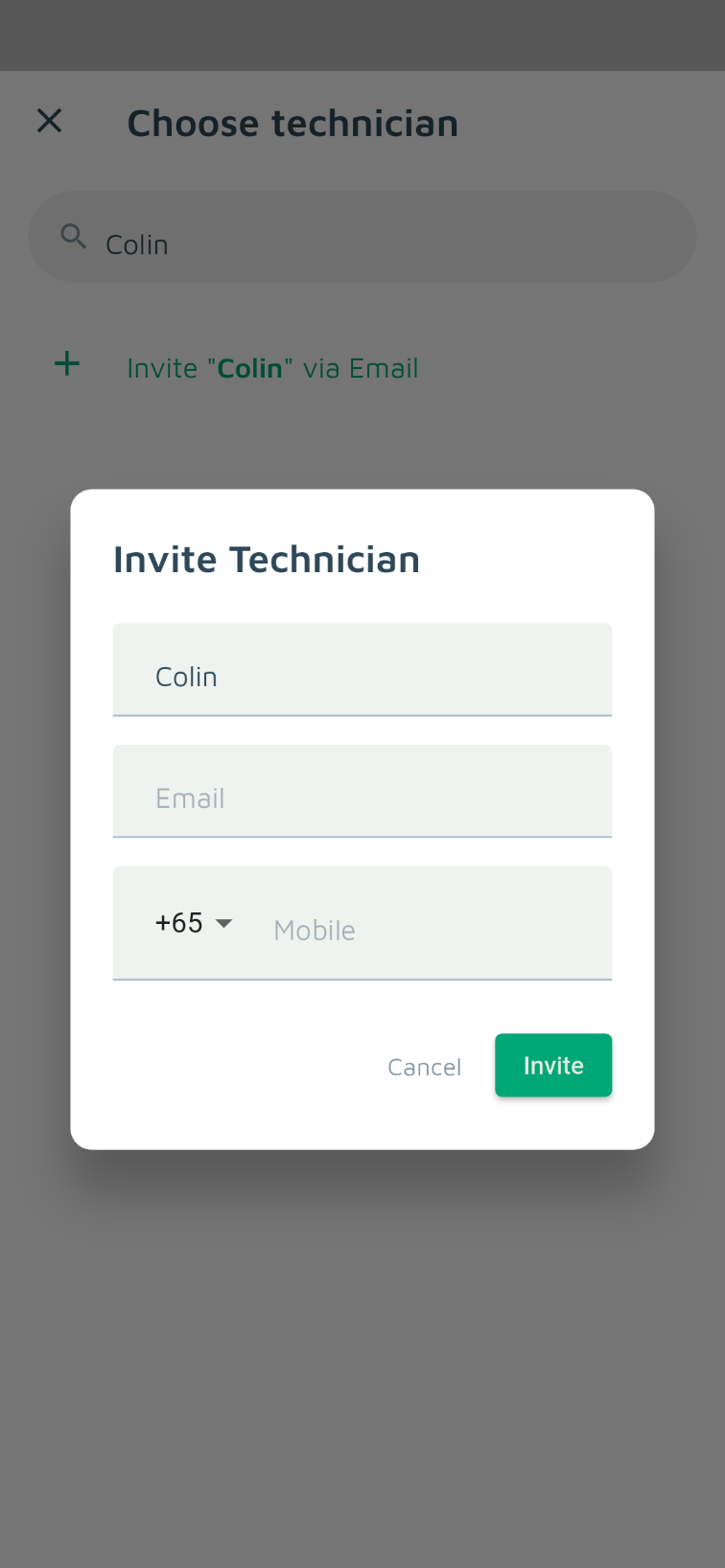
💡 Critical Note for Owner-Operators (Manager & Tech Dual Roles)
Because Basementgrid v2.0 separates administrative vendor controls from the on-site technician field app, a single email address cannot hold both roles simultaneously within the same workspace.
If you are both the Vendor Manager (handling the dashboard) and the on-site Technician (executing the physical work), you must use a separate, alternative email address to invite yourself as a technician. Once invited under the second email, log into the mobile app with those credentials to clock in, capture GPS photos, and close out jobs.
