Once you've filtered or searched for the work orders you care about, you don't have to redo it every time. Bookmark that filtered list as a Customised View, and it'll be one tap away from your home page.
This is especially useful if you find yourself checking the same slice of work orders often — like all high-priority plumbing issues, or everything assigned to a specific vendor.
How to Save a Customised View
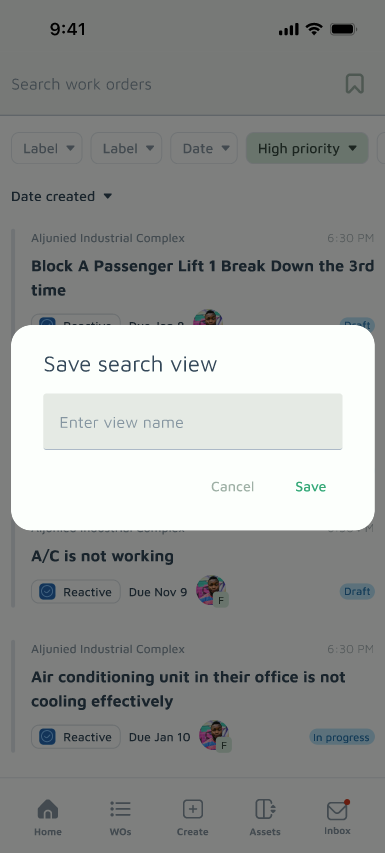
- Filter or Search: Apply the filter criteria or search terms you want (see Filtering and Searching for Work Orders if you need a refresher).
- Tap the Bookmark Icon: On the right of the search bar, tap the Bookmark icon.
- Name Your View: Enter a title for this Customised View — something clear enough that you'll recognise it later, like "High Priority Plumbing" or "John's Open WOs."
- Save: Tap Save, and your Customised View is ready.
Accessing Your Customised Views
Once saved, your Customised Views appear on the home page, so you can jump straight into that filtered list without setting up the filters again.
Default Views to Get You Started
To save you the trouble of setting these up yourself, Basementgrid comes with a set of default views based on your role:
- Admin: Planning, Active Jobs, Pending Finance, Action Required
- Collaborator: Action Needed, Coming Up, Contributions, Backlog
- Requester: Ongoing Work, Resolved
These appear on your home page automatically — no setup needed. You can still create your own Customised Views alongside them for anything more specific to your day-to-day.
