Basementgrid provides powerful filtering and searching capabilities to help you pinpoint exactly what you're looking for, whether you're an Administrator, Collaborator, or even a Requester checking on your submitted issue.
The Work Orders section of Basementgrid is designed to give you a comprehensive overview of all maintenance activities. As your list of work orders grows, leveraging the search and filter functions will save you valuable time.
How to Search for a Work Order:
-
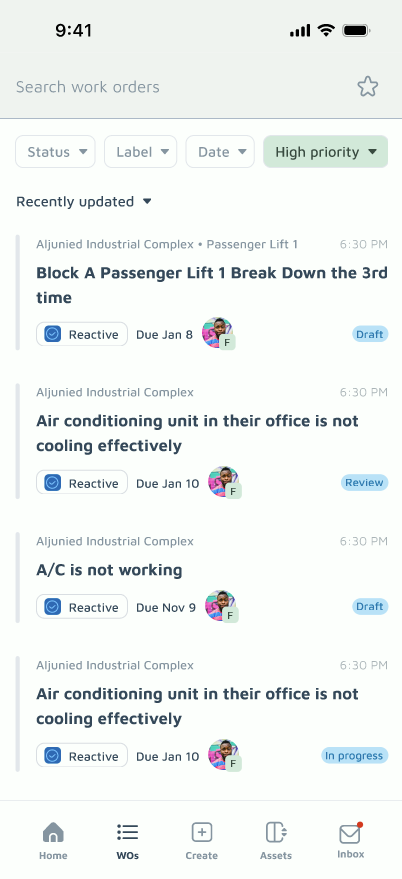
Locate the Search Bar: At the top of the WOs page (2nd on the bottom tab), you'll find a "Search" bar.
-
Enter Your Query: Type in keywords related to the work order you're trying to find. This could be:
-
Work Order ID: If you know the specific ID number.
-
Keywords from the Title: Like "leaky faucet," "AC repair," "electrical."
-
-
View Results: As you type, Basementgrid provide real-time suggestions to display the filtered list.
How to Filter Work Orders:
Beyond simple search, Basementgrid's filtering options allow you to narrow down your list based on various criteria.
-
Access Filters: On the search page, you can swipe left or right to access the various filter options.
-
Apply Filter Criteria: You can often filter by:
-
Status:
Draft,Pending,In progress,Review,Completed - Label: System labels (such as Awaiting Payment, Rework, etc.) and work order fields (such as plumbing, fire safety, etc.)
- Assignee: View work orders assigned to a specific team member or vendor.
- Type:
Reactive,Preventive,Emergency,Improvement,Compliance -
Priority:
High - Location: Locations created by admin
- Asset: Assets created by admin
-
Reporter: See issues reported by a particular user or yourself.
-
-
Combine Filters: You can typically apply multiple filters simultaneously to create highly specific views (e.g., "all urgent, open work orders assigned to John Doe in Building C").
