What is an Asset?
An Asset is a piece of equipment or infrastructure in your estate that needs upkeep. Examples are a passenger lift, a fire alarm panel, a water pump, or a generator.
Once an asset is set up, you can pick it when you create a work order. Basementgrid keeps every repair and service against that asset, so you can see its full history in one place.
How to add an asset
You can add an asset from three places.
Option 1: While creating a work order
- Start a new work order.
- In the Asset field, tap Add new asset.
- Fill in the details (see below) and save. The new asset is selected for your work order straight away.
Option 2: From the Assets tab
- Tap Assets on the bottom tab.
- Tap Add asset.
- Fill in the details and save.
Option 3: From Workspace settings
- Go to Workspace settings > Assets.
- Tap Add asset.
- Fill in the details and save.
Option 1 is quickest when you spot a missing asset halfway through raising a work order. Options 2 and 3 are better when you are setting up many assets at once.
Asset details, field by field
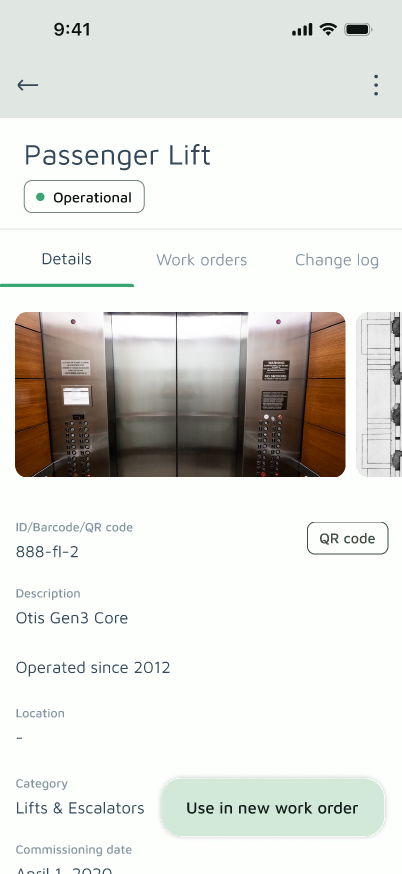
Name
The name people will see and search for. Include the block or a number if you have several of the same type, like "Block 5 Lift 2" or "Fire Pump A".
Photo
A photo of the asset. It helps technicians and vendors find and identify the right equipment on site. A clear shot that shows the nameplate or serial number works well.
Description
Any details that help identify or service the asset: brand, model, serial number, or notes such as "serves Level 1 to 12".
Location
Where the asset is. Pick from your existing locations, or add a new one. When you create a work order for this asset, its location is filled in for you.
Barcode
Enter a barcode value and Basementgrid generates a QR code for this asset. Print it and stick it on the equipment so it can be scanned on site.
Category
The type of asset, such as Lift & Escalator, Fire Safety, or Electrical. Pick the closest match. Categories keep your asset list organised and easy to filter.
Commissioning Date
The date the asset was first put into use. This is usually the handover or installation date.
Estimated Replacement Value
Roughly what it would cost to replace this asset today. An estimate is fine. It helps your council weigh repair against replacement when costs start to add up.
Warranty Expiry Date
The date the asset's warranty ends. This field matters when you issue a work order.
If the asset is still under warranty and you issue a work order with an amount, Basementgrid asks you to explain why you need to pay. Repairs under warranty are usually covered by the supplier, so this stops the estate paying for something it may not have to. Typical valid reasons are damage that the warranty doesn't cover, or work that falls outside the warranty terms.
Once the warranty expiry date has passed, no explanation is needed.
Useful Years
How many years the asset is expected to last. Together with the commissioning date, this tells you how old the asset is compared to its expected life.
Assign to
Choose a default assignee for this asset, either an internal team member or a vendor. When someone creates a work order for this asset, it is assigned to that person or vendor automatically. Set your lift vendor on your lifts, your fire safety contractor on your fire alarm panels, and so on.
You can still change the assignee on an individual work order if needed.
Tips
- Add the warranty expiry date as soon as you know it. It is easy to forget, and it protects the estate from paying for covered repairs.
- Use consistent names, like "Block 5 Lift 1" and "Block 5 Lift 2", so search stays easy.
- Set the location on every asset so work orders fill in the right place automatically.
- Review "Assign to" when you change vendors, so new work orders don't go to the old one.
