What is a Location?
A Location is a place in your estate where work happens or where assets sit. Examples are a lift lobby, the pump room, Block 12 carpark, or the swimming pool.
Set up your locations once and you can pick them whenever you create a work order. Locations also power GPS checks, QR code reporting, and automatic assignment.
How to add a location
You can add a location from two places.
Option 1: While creating a work order
- Start a new work order.
- In the Location field, tap Add new location.
- Fill in the details (see below) and save. The new location is selected for your work order straight away.
Option 2: From Workspace settings
- Go to Workspace settings > Locations.
- Tap Add location.
- Fill in the details and save.
Option 1 is quicker when you spot a missing location halfway through raising a work order. Option 2 is better when you are setting up many locations at once.
Location details, field by field
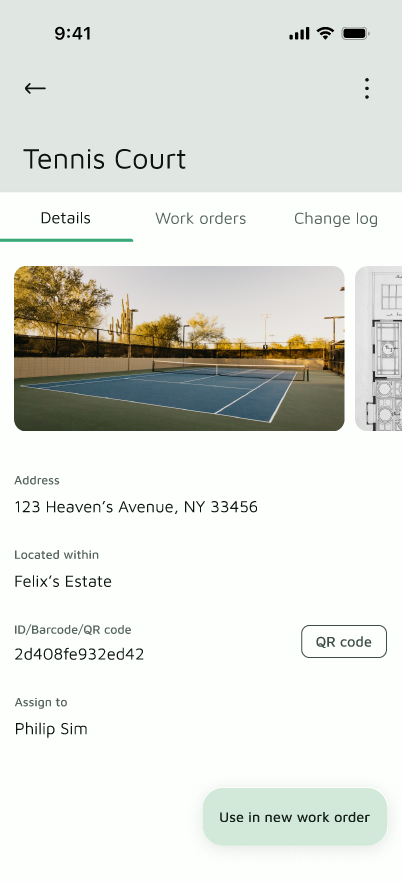
Name
The name people will see and search for when creating a work order. Keep it short and recognisable, like "Block 5 Lift Lobby" or "Basement 1 Pump Room". Use the names your building manager and vendors already use on site.
Address (optional)
The physical address of the location. Add it if you want GPS verification. Basementgrid then checks that the person is actually at the location when they:
- clock in to a job
- submit a Completion Record
- submit an Asset Verification (system form)
- submit a customised form that requires photo verification
If you don't need GPS verification for this location, leave the address blank. Those actions will go through without a location check.
If you do add an address, make sure it's the right address.
Photo
A photo of the location. It helps vendors and technicians who have never been to the site find the right place. A clear wide shot that shows a landmark works well, such as the door, signage, or the equipment itself.
Barcode
Enter a barcode value and Basementgrid generates a QR code for this location. Print it and stick it up at the location. Anyone who scans it can:
- Report a fault for that location, with the location already filled in
- Access work orders in that location
This is handy for residents, tenants, and staff who spot a problem but don't know how to describe where it is. Scanning the code tells Basementgrid exactly where they are.
Assign to
Choose a default assignee for this location, either an internal team member or a vendor. When someone creates a work order for this location, it is automatically assigned to that person or vendor. This saves your building manager from picking the assignee every time.
For example, if the lift lobbies are always handled by your lift vendor, set them as the assignee on those locations. Every new work order for a lift lobby goes to them without extra steps. You can still change the assignee on an individual work order if needed.
Tips
- Use consistent naming so search stays easy, for example "Block 5 Lift Lobby" and "Block 6 Lift Lobby".
- Set the address before you rely on GPS-verified forms.
- Print the QR codes in a size people can scan from arm's length, and put them somewhere visible.
- Review "Assign to" when you change vendors, so new work orders don't go to the old one.
