Are you experiencing a maintenance issue at your property? Basementgrid makes it easy to notify your maintenance team quickly and efficiently. Follow these simple steps to submit a new request.
Whether it's a maintenance request, a standard operating procedure like moving in or out, or applying for a renovation permit, occupants follow the same steps below.
Step 1: Navigate to the Messaging Tab
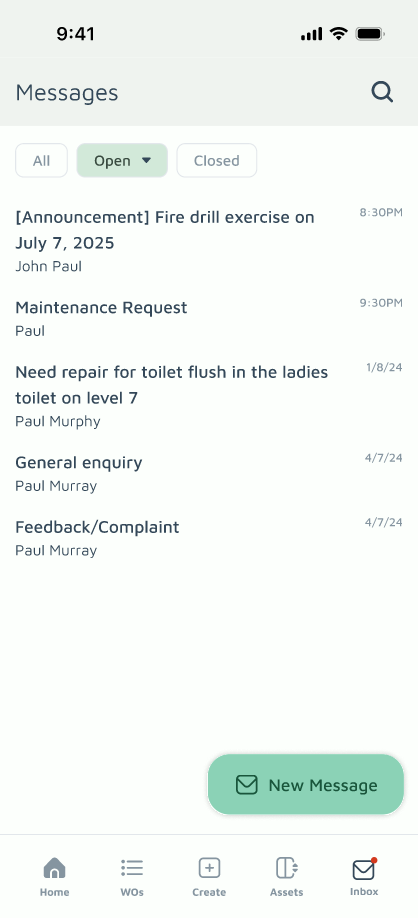
Log in to your Basementgrid account. Once logged in, look for the "Messages" tab. This is where all communication regarding your property happens.
Step 2: Start a New Conversation
Within the Messages section, locate the "New Message" button. This will open a new message window where you can communicate directly with your property's maintenance team.
Step 3: Clearly Describe Your Request
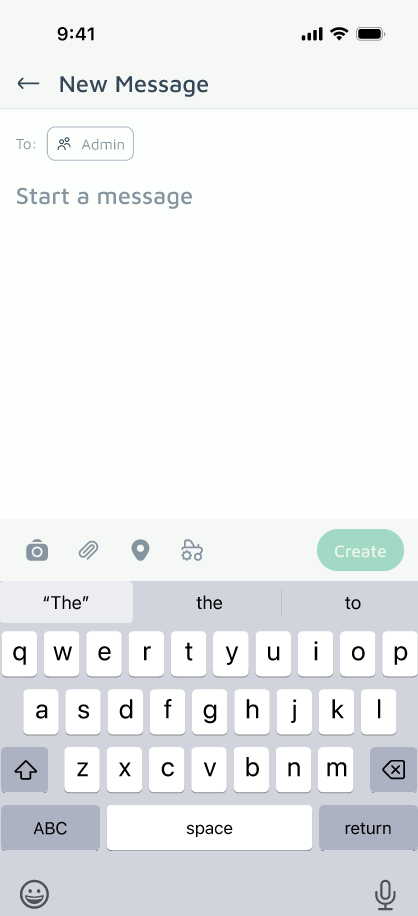
In the message body, provide a clear and concise description of the request. The more details you provide, the faster your team can understand and address it. Please include:
- What is the issue or request? (e.g., "Leaky faucet in the kitchen," "AC not cooling," "Moving out on 15th," "Applying for renovation permit")
- Where is it located? (e.g., "Unit 4A, kitchen sink," "Master bedroom, unit 2B," "Front door")
- When did it start, or when do you need it done?
- Any additional relevant information? (e.g., "It's a small drip," "Making a loud noise," "Happened after the storm")
Step 4: Attach Photos or Videos (Optional, but Recommended!)
Visuals are incredibly helpful! If possible, use the "Camera" or "Paperclip" icon within the message window to include photos or short videos of the issue. This can significantly speed up the diagnostic process.
Step 5: Send Your Message
Once you've provided all the necessary details and attached any relevant media, click the "Create" button. Your message will be sent directly to your property's maintenance team.
What Happens Next?
Once the maintenance team reads your message, they may reply asking for more details, or attach a form for you to complete — for example, for a move-in/out or renovation permit request. After you submit the completed form, they'll convert the message into an official Work Order.
Note: When you write a message, it's only a request at this stage, not a formal Work Order yet. It only becomes a Work Order once the maintenance team converts it, after reviewing your details and any submitted form.
Once converted, you'll be able to track the progress of your request directly within the Work Order section, receive updates, and communicate further with the team regarding that specific issue.
