Before a vendor can be assigned a work order, they need to be on your workspace. Inviting takes about a minute, and the vendor doesn't have to sign up first. You can start using them on work orders right away.
Admins and Collaborators can invite vendors. Vendors are always free, so inviting one costs your MCST nothing.
Invite a vendor while creating a work order
This is the easiest way, because you invite them at the moment you need them.
- Open Create New WO.
- Under Assignment, tap the Assignee field.
- Switch to the Vendor tab.
- Search for the vendor by name. If they've already signed up to Basementgrid, they'll show in the list. Tap their name to assign them.
- If they're not there, scroll to the bottom of the list and tap Invite vendor.
- Fill in the vendor's details and send the invite.
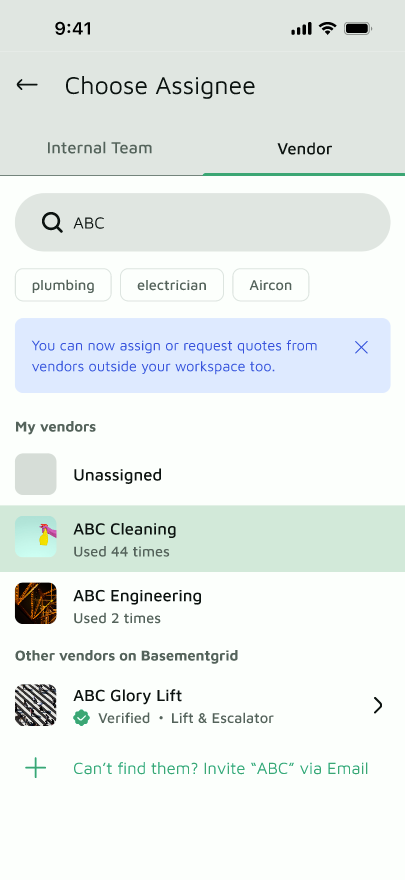
The vendor now appears in your list and you can assign the work order to them straight away. Search matches on name only, so check the spelling if someone doesn't show up.
What the vendor receives
The vendor gets an invite to join. When they accept, they set up their account as a Vendor Manager. This is the person who receives work orders for the company, assigns them to technicians, and submits invoices.
If the vendor hasn't accepted yet, your work order and any quote request stay attached to their record. Once they accept, everything is waiting for them.
Inviting a vendor another estate already uses
If a vendor has been invited by another MCST or MA but hasn't accepted yet, you can still invite them. You won't create a duplicate. Basementgrid links your workspace to the same vendor record, and you're connected automatically once they accept.
Tips
- Use the name on their UEN registration. Vendors are verified by UEN, so the registered company name avoids confusion later.
- Invite the person who manages jobs. The invite should go to the Vendor Manager's email, not a shared inbox that nobody checks.
- Vendors with their own staff invite their technicians themselves. You don't need to add individual technicians. The Vendor Manager does that from their side.
