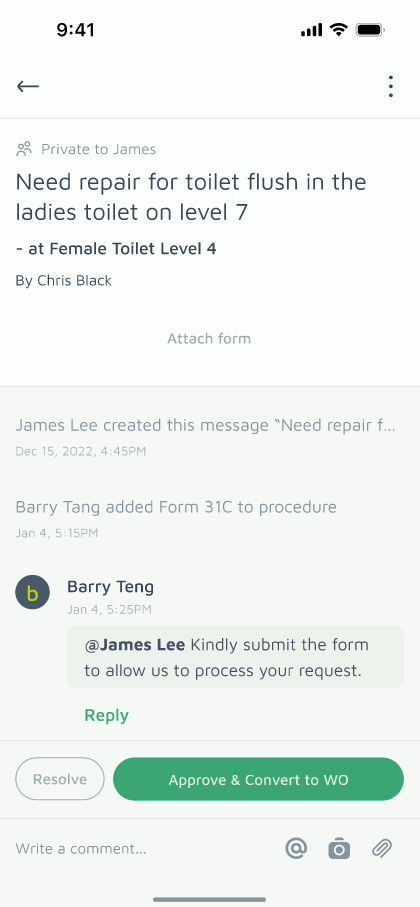
When a Requester submits a message — a maintenance request, move-in/out notice, or renovation permit application — you may need official information from them before approving the request and converting it into a Work Order. Attaching a form lets you collect that information directly within the message thread.
This sits before Raising a Work Order in your workflow — think of it as a filtering step, to confirm whether the Requester's need is valid before it becomes an official Work Order.
Form templates can be customised to fit your estate's needs.
Steps to Attach a Form
- Go to Message tab
- Open Message details
- Tap "Attach form" button
- Choose the form
Plan Limits
Free and Basic Plans: You can attach 1 form per message.
Pro Plan: You can attach up to 5 forms per message.
Once the Requester submits the completed form, you'll be able to review it and convert the message into an official Work Order.
