In property maintenance, plans change fast. A technician might get tied up on an emergency job, go on leave, or run into unexpected delays.
If you have already assigned a technician to a Work Order (WO) but need to swap them out, Basementgrid makes it incredibly easy to reassign the task. This ensures the new technician gets immediate access to the job details and can clock in onsite without any friction.
Here is how to change a technician in just a few taps from your mobile app.
Step-by-Step Reassignment
1. Go to 'View All WOs'
Open your Basementgrid app. On the main dashboard, scroll down past your immediate action items until you see the View All WOs button, and tap it.
2. Open the Work Order
Browse or search through your list to find the specific Work Order you need to update. Tap on it to open up the full WO Details screen.
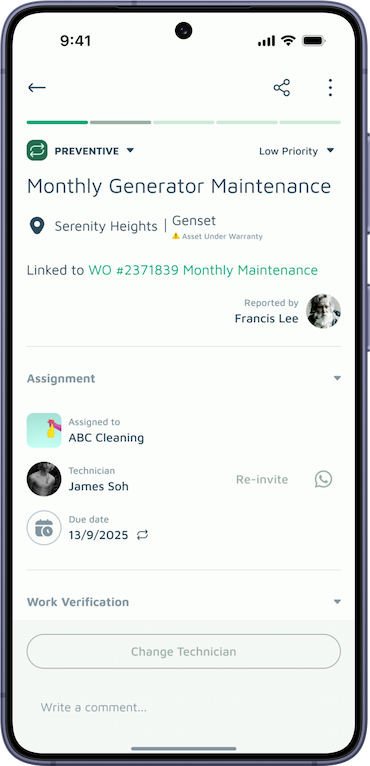
3. Tap 'Change Technician'
Scroll to the assignment section within the WO details. Tap the Change Technician button, select the new technician from your team list, and confirm.
What happens next?
-
Instant Notification: The newly assigned technician will immediately see the Work Order on their own app home page so they can clock in and upload their GPS-verified photos when finished.
-
Clean Audit Trail: The system automatically updates the logs, keeping the Building Manager informed of who is actually performing the work.
