Before you commit to a price, you'll usually want to see the vendor's quotation first. Here's how to do that in Basementgrid so the price you approve matches what's actually on the document.
Step 1: Create the work order, but don't issue it yet
Create the work order as usual and set the vendor as assignee. Leave it unissued for now — this lets the vendor see the job without anything being confirmed.
Step 2: Ask the vendor to upload their quotation
They can upload it in one of two places:
- Commercials section — use this if you don't want the vendor's technician to see the quotation. Only the Vendor Manager can see documents here.
- Comments — use this if visibility doesn't matter. Anyone with access to the work order, including the technician, can see it.
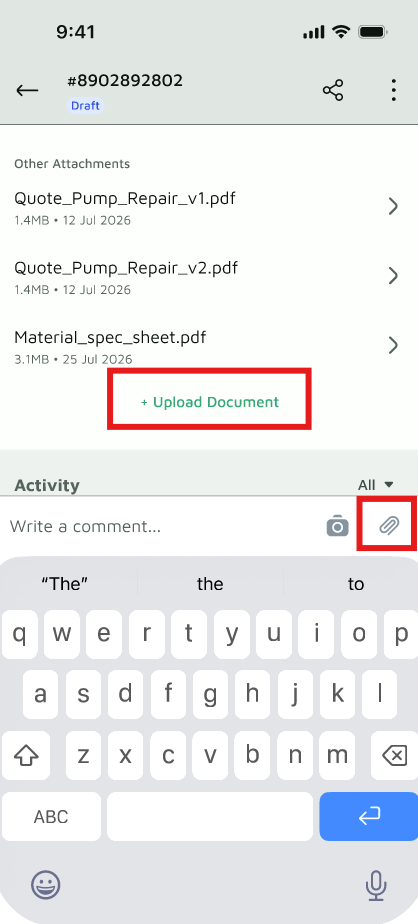
Step 3: Download, check, and sign the quotation
Download the quotation, review the scope and price, and sign it once you're satisfied.
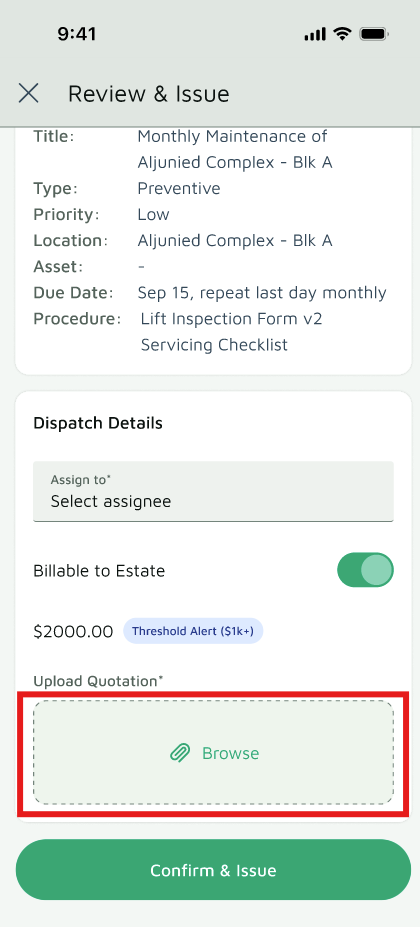
Step 4: Issue the work order with the signed quotation
Go back to the work order, issue it, and upload the signed quotation. Enter the work order amount to match the document exactly.
This keeps the price and the paperwork in sync — no more "but I quoted a different price" conversations later.
Quick recap
- Create the work order and assign the vendor — don't issue yet.
- Vendor uploads quotation via Commercials (hidden from technicians) or Comments (visible to all).
- Download, review, and sign the quotation.
- Issue the work order with the signed quotation attached and the amount matching exactly.
