Filters help you find the work orders that matter, so you can prioritize tasks and keep jobs moving
How to filter
Step 1. Go to the Work Orders tab
Step 2. Tap the filter you want in the bar at the top of the work order list
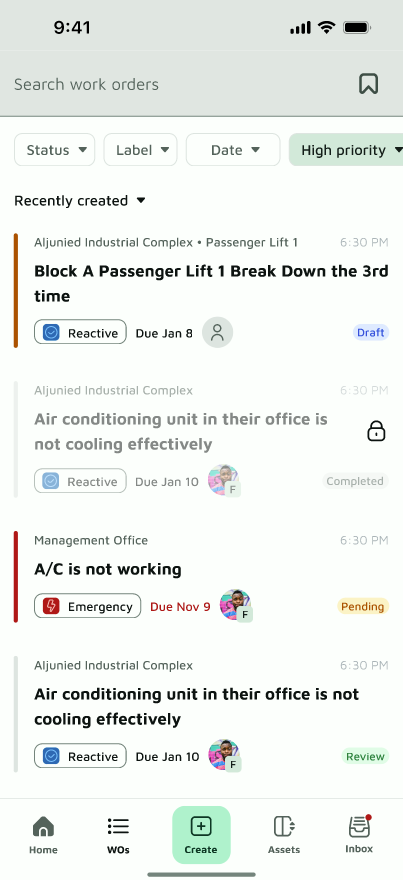
Step 3. Select one or more options, then apply
Step 4. To change or clear a filter, tap it again
You can combine filters to narrow your results. For example, show all High priority work orders assigned to a specific vendor at one location.
Available filters
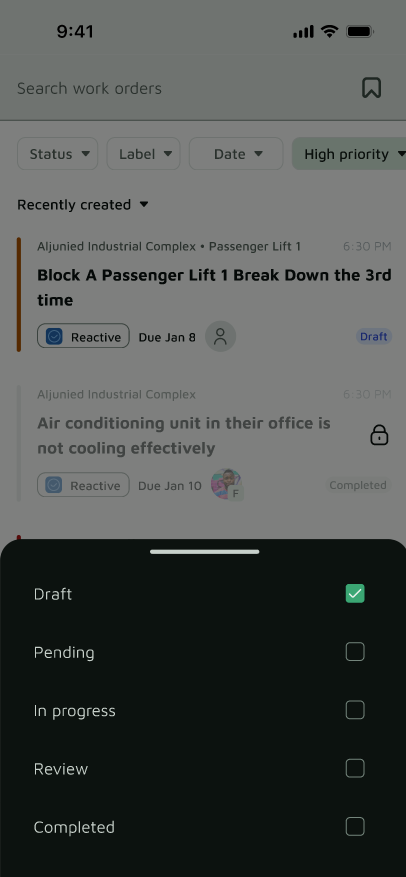
1. Status
See work orders by where they are in the process, such as open, in progress, or completed.
2. Label
Find work orders by the custom tags your team has set up.
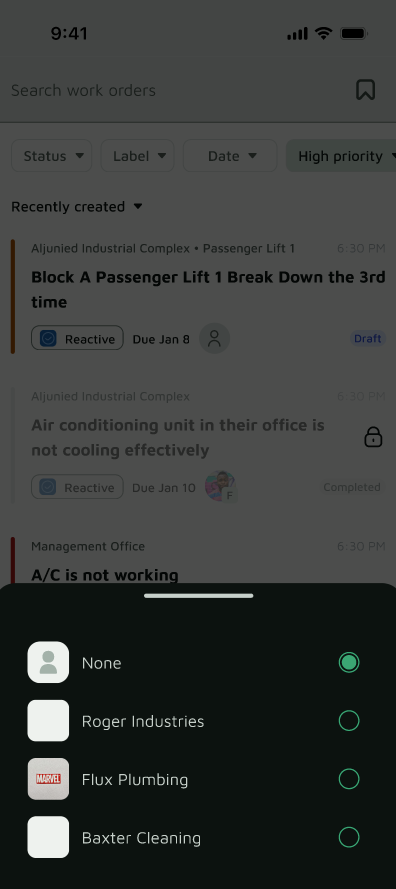
3. Assignee
See what’s assigned to a specific team member or vendor.
4. Type
Filter by the category of work, such as electrical, plumbing, or cleaning.
5. Priority
Focus on the most urgent jobs first.
6. Location
See all work orders for a specific area of the estate.
7. Asset
View the full job history for a specific piece of equipment.
8. Reporter
Find work orders raised by a particular person.
