Before you commit to a repair, ask your vendor to quote for the job. The vendor submits a price and a quotation PDF, you review it, and you approve or reject it. Approving issues the work order with the quoted amount, so there’s no retyping.
Each work order goes to one vendor. If you want to compare prices, create a separate work order for each vendor.
Request the quote
Step 1. Create a new work order, or open an existing Draft work order
Step 2. Fill in the job details (title, location, asset, and so on)
Step 3. Under Assignment, choose the vendor you want a quote from
Step 4. Turn on Billable
Step 5. Under Amount, switch from entering the amount manually to Request Quote. The Amount field is greyed out and shows “Request a quote”.
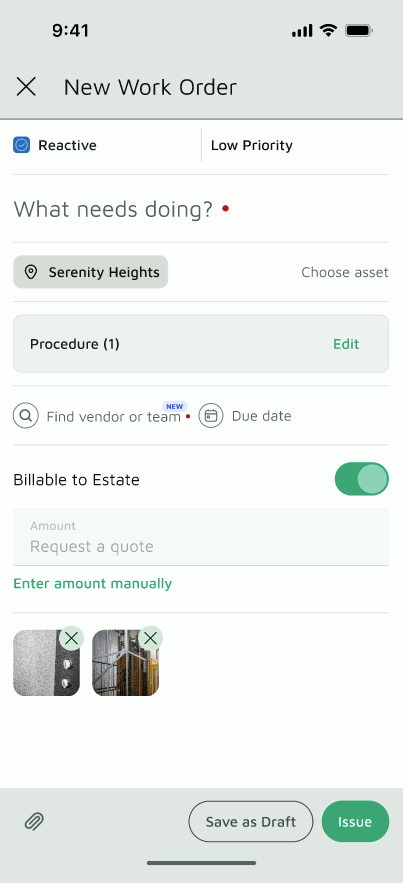
Step 6. Tap Request Quote
The work order stays in Draft with the sub-status Pending Quote. The vendor receives a New Job Required Quote notification asking them to submit their quotation.
What the vendor does
The vendor’s manager opens the work order and submits:
- Amount: the quoted price
- Quotation: a PDF of the quotation
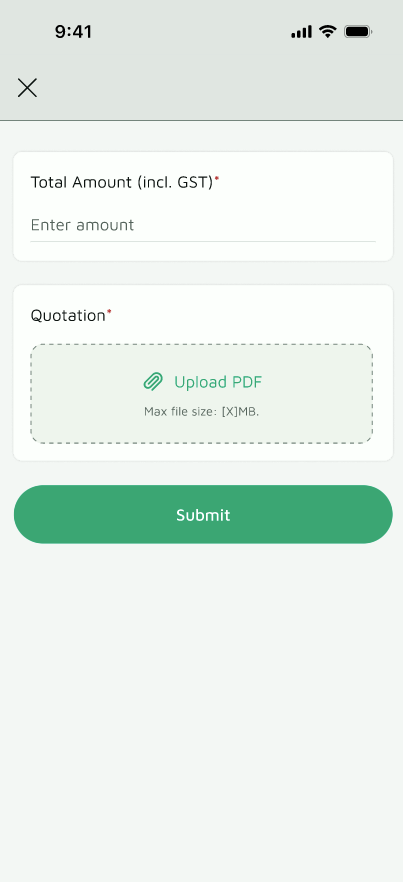
Both are required. Once submitted, the work order moves to Draft | Quote Received.
Not sure how your vendor submits it? Share How to submit a quote with them.
Review the quote
Step 1. Open the work order. The sub-status shows Quote Received.
Step 2. Check the quoted Amount and the quotation PDF in the Commercials section
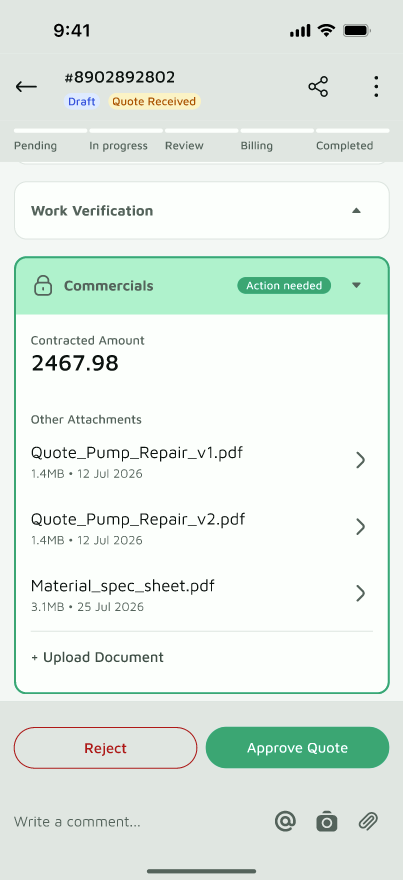
Step 3. Admins will see Accept and Reject buttons. Tap one.
- Accept: The work order is issued automatically with the quoted amount, so you don’t need to tap Issue WO. Accepting counts as your digital sign-off and is recorded in the activity log, so you don’t need to upload a signed copy.
- Reject: The work order goes back to plain Draft. The rejected quote stays in the work order history, and you can edit the job, request a new quote, or choose another vendor.
If the amount is above your workspace’s approval threshold, the work order then goes to your Approvers for authorization. Accepting the quote doesn’t replace their approval. See How to authorize a work order for what happens next.
Good to know
- Issue WO is only used for a Draft work order where you’ve entered the amount yourself. If you requested a quote, accepting it issues the work order for you.
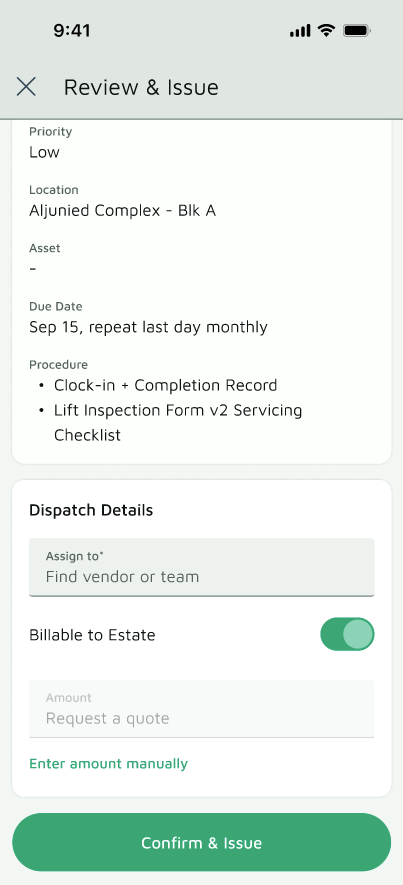
- Once the work order is issued, the amount is locked.
- If you don’t need a quote, enter the amount manually and tap Issue WO as usual.
- Vendor technicians can’t see quotes or amounts. Only the vendor’s manager can submit a quote.
