The Pay Invoice page on Basementgrid makes settling vendor payments fast, secure, and completely free of manual typing errors.
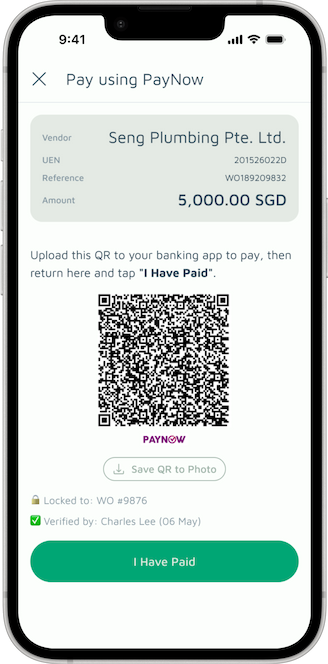
By using a dynamically generated PayNow QR code that has the vendor's UEN and the exact approved amount embedded directly into it, you never have to worry about paying the wrong person or entering the wrong amount.
💡 The Accountant’s Role in MCST Context
In property management, the Accountant’s primary role is to serve as an administrator who maintains the official financial ledger—they are not required to manage or physically handle estate funds.
Because Basementgrid fully automates the payment data pipeline between the Building Manager (BM) and the Council, the traditional step of having an accountant manually draft bank records is eliminated. Instead, the team handles the banking execution directly, and the BM can simply send the perfectly formatted, automated ledger to the Accountant once payments are wrapped up.
Part 1: For the Maker (Accountant / Admin)
How to Create the Payment Record
As the Maker, your job is to queue the transaction in your corporate bank portal.
-
Locate the QR Code: On the Pay Invoice page, you will see a unique PayNow QR code. This code is pre-locked to the vendor's registered UEN and the exact approved amount of the work order.
-
Save the QR: Click Save QR Code (or take a screenshot) to save the image to your phone or computer.
-
Upload to Bank Portal:
-
Log into your corporate banking app (e.g., DBS IDEAL, UOB Infinity, OCBC Velocity).
-
Choose the option to Scan/Pay via QR and select Upload QR from Gallery/Files.
-
Select the saved QR image. The bank app will automatically populate the vendor's UEN, the exact payment amount, and the reference.
-
-
Submit for Approval: Submit the payment record to queue it for your estate's authorized signers (Approvers).
Part 2: For the Approver (Council Member / Signatory)
How to Approve & Update Basementgrid
As the Approver, you are the first person to know if a payment is officially successful. Once you take action in your bank app, you must return to Basementgrid to close the loop.
-
Approve in the Bank App: Log into your corporate banking app, review the queued transaction (using the Basementgrid work order link if you need to double-check photos or logs), and approve the payout.
-
Return to Basementgrid: Once the bank confirms the transaction is successful, immediately open the Basementgrid Pay Invoice page for this work order.
-
Mark the Status: Click the button to mark the payment status:
-
Mark as Paid: If the transaction went through successfully.
-
Mark as Failed: If the bank rejected the transaction or there was an issue, so the team knows to investigate.
-
⚠️ Why is this step critical? Because banks do not automatically talk to estate software, the Approver is the first to know the payment outcome. Marking it as Paid in Basementgrid is what instantly updates the work order status, locks the ledger, and stops anyone else from trying to pay the same invoice twice.
What Happens Next?
The moment you click I Have Paid:
-
The work order status permanently updates to Paid.
-
The vendor is notified that the payment has been finalized.
-
The digital ledger is updated with a complete audit trail, ready for your next council meeting or AGM.
