Upgrading your Basementgrid workspace plan unlocks advanced estate management features, increased admin seats, and expanded operational capabilities.
This guide walks you through how to upgrade your plan, select billing cycles, and complete payment via PayNow.
Step-by-Step Plan Upgrade
Only workspace Admins have permission to upgrade plans.
- Access Settings: Tap Workspace Settings in the top-left corner of the Home Page.
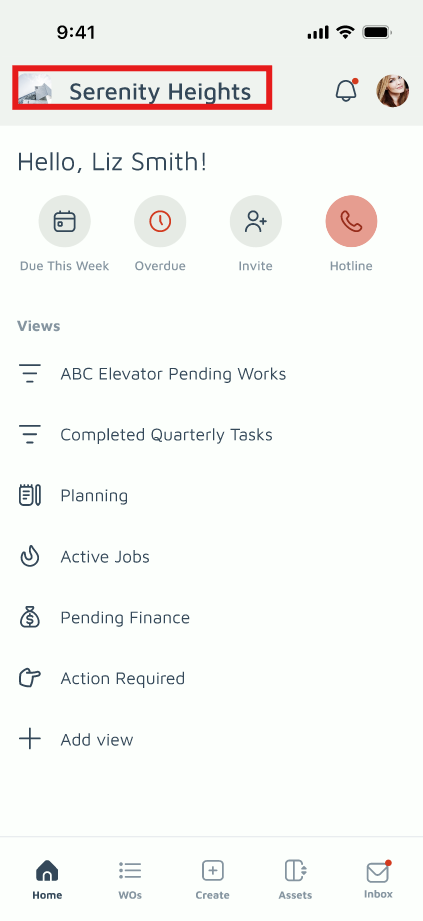
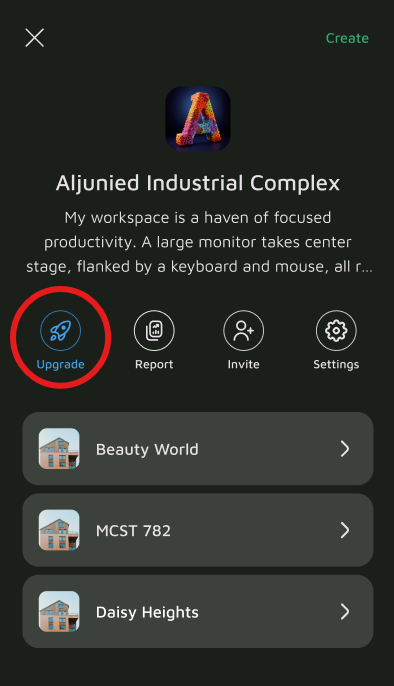
- Start Upgrade: Tap Upgrade.
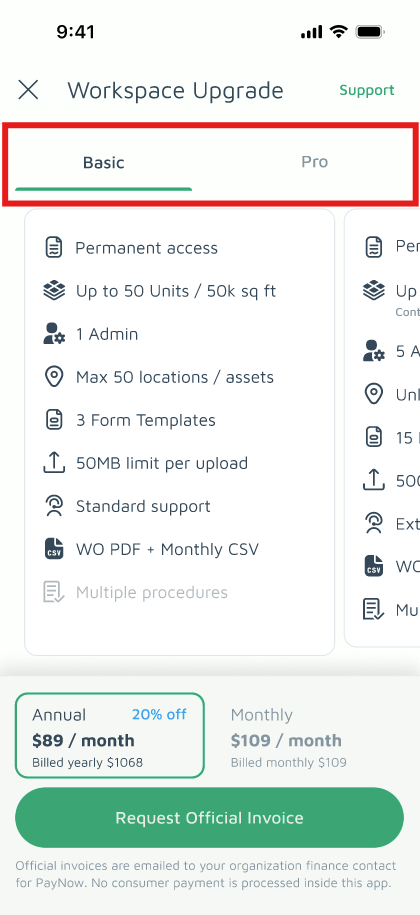
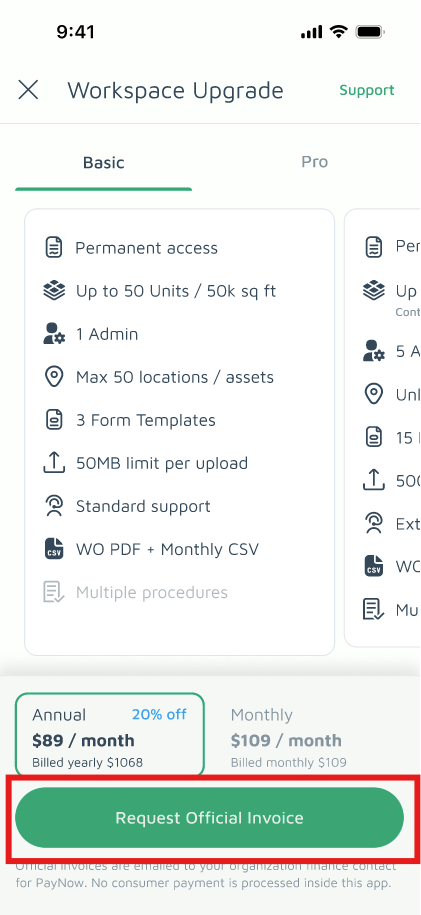
- Select Tier: Choose either the Basic or Pro plan tab to review included features.
- Choose Frequency: Select your preferred billing cycle (Monthly or Annual) using the sticky bottom bar.
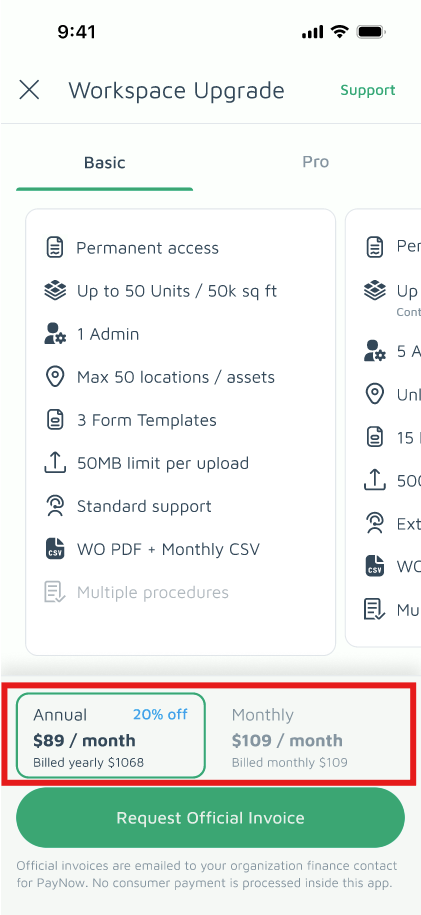
- Request Invoice: Tap Request Official Invoice.
- Confirm Details: Fill out the billing form:
- Organization Name: Auto-filled from your current workspace name.
-
UEN: Auto-filled from your registered entity details.
-
Billing Email Address: Enter where the invoice should be sent.
-
CC Email Address: (Optional) Add extra recipients such as your council treasurer or accounting team.
-
Accept Terms: Tap the agreement checkbox.
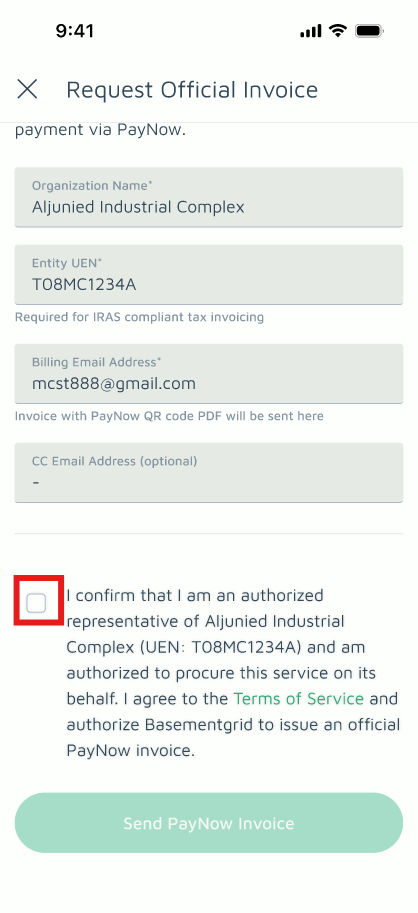
- Submit: Tap Send PayNow Invoice.
Completing the Upgrade
-
Invoice Delivery: Your official tax-compliant invoice and PayNow QR code are immediately sent to the designated billing email address.
-
Instant Activation: Once the PayNow transfer is completed and verified by the system, your workspace is automatically upgraded to the selected tier.
-
Receipt Generation: A full payment receipt featuring your bank/FAST Transaction Ref ID will be issued automatically upon settlement for your audit records.
Frequently Asked Questions
Will upgrading affect my existing property data? No. Upgrading your plan only adjusts administrative limits and feature access. All saved locations, assets, vendors, and historical work orders remain completely unchanged.
What happens if I need to send the invoice to a treasurer? You can include their email in the CC Email Address field during step 6 so they receive the invoice and PayNow QR code directly in their inbox.
Need help selecting the right plan tier for your site? Reach out to support@basementgrid.com.
